In short
Compared with OBS Studio 33.0.0, its settings and its source code.
| qBlank | OBS Studio | |
|---|---|---|
| Made for | Playing on one source and recording it | Scenes for streaming and recording |
| Sources | Card, screen or window, one at a time | Any number, layered in scenes |
| When a frame is shown | As soon as it arrives | At the next tick of the canvas |
| Frame rate | The source's own | One canvas rate for everything |
| Card sound | Own buffer, 30 ms by default | Monitoring, held back to match the video |
| Deinterlacing | Runs when the picture is measured as interlaced | Chosen by hand per source |
| Video standard | Found automatically | Set in the card driver's dialog |
| Composite dot crawl | Filters built in | – |
| Older games in exclusive fullscreen | – | Game Capture |
| Replay buffer | Memory or disk, up to 30 minutes | Memory |
| Streaming | – | Yes |
| Systems | Windows 10 and 11, 64-bit | Windows, macOS, Linux |
| Download | One file, about 3 MB; ffmpeg for recording on request | Installer, 187 MB |
| Licence | GPLv3 | GPLv2 or later |
Capture card: timing
OBS: one canvas, one clock
- Each tick, OBS updates the sources, hands the frame to the encoders, draws the preview, then sleeps until the next tick.
- A card frame is picked up at the next tick. One that arrives just after a tick waits almost a whole interval: up to 16.7 ms at 60 fps.
- The rate is one number for the whole canvas, under Settings → Video. A 50 Hz console on a 60 fps canvas shows every fifth frame twice. A 60 Hz console on 50 fps loses every sixth.
- Preview and projectors are drawn with VSync: each present waits for the monitor's refresh.
- Buffering of a Video Capture Device is on Auto-Detect. OBS's own tooltip calls Disable ideal for playing a console. Then only the newest frame is kept.
- To play fullscreen, OBS has projectors: Open Source Projector on a monitor or in a window, Fit window to content for the window.
qBlank: no canvas
- Each frame is drawn when it arrives, at the source's rate. A 50 Hz console runs at 50, a 60 Hz one at 60, with nothing to change.
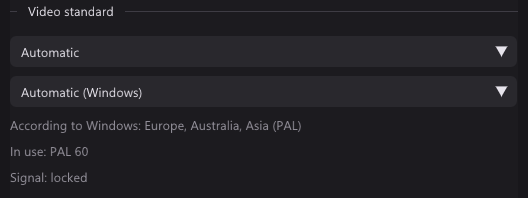
- The card's frame rate follows the video standard. The signal's rate takes 50 Hz for PAL, 59.94 for NTSC, 60 for PAL 60.
- A triple buffer: a frame not yet drawn is replaced by the next, never queued behind it.
- One frame of queue in the swap chain, tearing allowed, VSync off by default. Display → VSync turns it on.
- The window itself is the player: Enter fullscreen, Ctrl+Enter borderless.
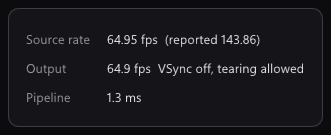
F1 shows what qBlank adds itself: Pipeline is the time from a frame's arrival in qBlank until it leaves qBlank. About 1 ms at 1080p60. The card and the monitor add their own on top.
Capture card: sound
OBS
- A Video Capture Device starts on Capture audio only. You hear the console only after turning on Audio Monitoring in Advanced Audio Properties.
- Monitor Off, Monitor Only (mute output) or Monitor and Output. Monitoring plays through the shared Windows mixer and waits until the sound lines up with the video's timestamps.
- OBS grows its audio buffer when sources drift, up to about 960 ms. Low Latency Audio Buffering Mode fixes it at 20 ms. OBS meant it for Decklink and NDI and warns that sound may break up.
- Users on the OBS forum report monitoring about a tenth of a second behind the picture.
- Output desktop audio (DirectSound) or (WaveOut) plays the card straight through Windows instead, outside the monitoring.
qBlank
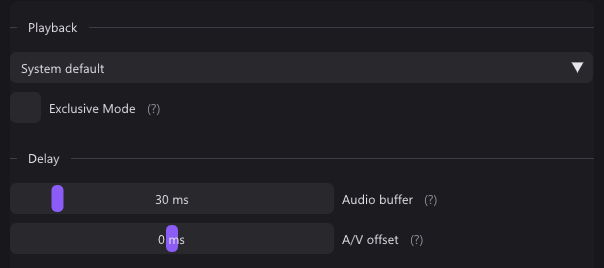
- The card's sound plays from the start, through qBlank's own buffer: Audio buffer from 5 to 200 ms, 30 by default.
- Exclusive Mode bypasses the Windows mixer for less delay. The device is then locked against other programs.
- A/V offset moves sound or picture by up to 200 ms, for a TV or headset that adds its own delay.
- M mutes, + and - set the volume. Neither touches the recording.
Analogue consoles
| qBlank | OBS Studio | |
|---|---|---|
| Video standard | PAL, NTSC or SECAM found automatically, follows a switch between 50 and 60 Hz | Set in the driver's dialog behind Configure Video |
| Deinterlacing | Only on a picture measured as interlaced | One mode per source, always on |
| Modes | Off (weave), Bob, Bob (interpolated), Motion adaptive, Edge directed, YADIF | Discard, Retro, Blend, Blend 2x, Linear, Linear 2x, Yadif, Yadif 2x |
| Field order | Automatic, or by hand | Top Field First or Bottom Field First |
| Colour range | Measured from the picture | Default, Limited or Full, by hand |
| Composite dot crawl | Five filters, compared side by side | – |
| Pixel art | Native pixel grid, Sharp Bilinear, Integer scaling | Point scaling |
| Scanlines, CRT mask | Built in, for the display only | Shader plugins from others |
Video standard
A card set to NTSC shows a PAL console in black and white or with rolling colours. In OBS you open the driver's dialog and change it. qBlank tries the standards itself until the colour locks. F7 checks again on the current picture.
Deinterlacing
Many consoles send 240p and 480i on the same signal: one game, or even its menu, switches between them. OBS keeps its mode until you change it. A fixed mode also treats 240p as interlaced and loses sharpness or motion on it.
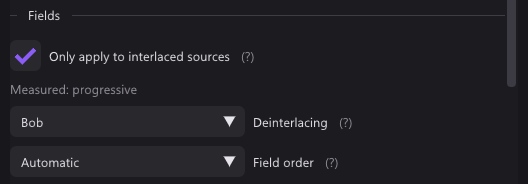
qBlank measures each picture. Only apply to interlaced sources lets the deinterlacer stay on: 240p passes untouched, 480i and 576i are deinterlaced. The field order is measured too.
Colour range
Wrong range shows as grey blacks or crushed shadows. OBS sets it by hand per source. qBlank measures it from the picture; F6 measures again.
Composite
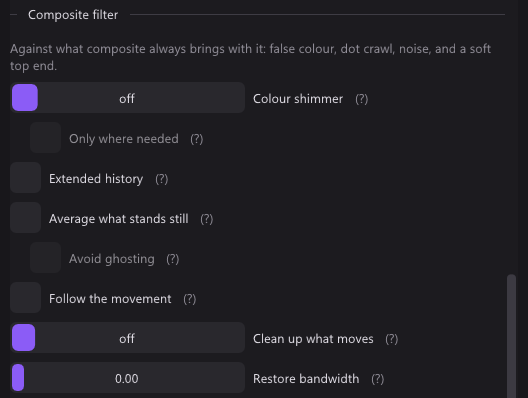
Composite carries colour inside brightness, which leaves moving dots along edges. qBlank has five filters against it; they only appear for a composite input. F12 splits the picture into off and on, F11 holds it still. OBS has nothing built in for this.
Pixel art and scaling
- OBS: Scale Filtering with Point, Bilinear, Bicubic, Lanczos and Area. Point keeps pixels sharp but uneven when the scale is not whole.
- qBlank: Nearest Neighbor, Bilinear, Bicubic, Lanczos3 and Sharp Bilinear, which keeps pixels sharp and even at any scale. Integer scaling sits under the aspect ratio.
- qBlank also has Native pixel grid: pick how many pixels the console draws across, 256 for a SNES. Each console pixel then becomes one sharp block.
- Scanlines and a CRT mask are built into qBlank and apply to the display only. OBS needs a shader plugin from someone else.
Screen and window
How each captures
| qBlank | OBS Studio | |
|---|---|---|
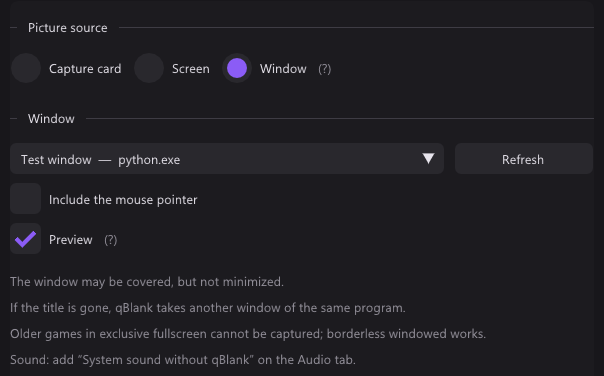
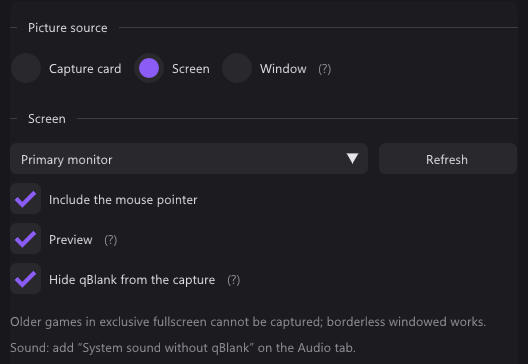
| Screen | Desktop Duplication | Display Capture: Automatic, Legacy (DXGI) or Modern (WGC) |
| Window | Windows.Graphics.Capture | Window Capture: Legacy (BitBlt) or Modern (WGC) |
| Older games in exclusive fullscreen | Not possible, and qBlank says so; borderless windowed works | Game Capture hooks into the game |
| Inside the game | Nothing; only what Windows offers every program | Game Capture loads a hook into it; an anti-cheat compatibility hook is an option |
| Window lost | Another window of the same program | Window Match Priority: title only, same type, or same program |
| Border | Always cut off | Client Area box |
| Mouse pointer | Box | Box |
Covered windows come through in both. Minimised ones do not.
When a new picture is taken
- OBS takes the desktop at its tick. With DXGI it asks Windows once per tick, without waiting. With WGC Windows hands over each picture, and OBS draws the newest one at its tick. Either way a picture can wait up to one canvas interval.
- qBlank takes each picture as Windows hands it over and draws it at once.
- Measured from arrival in qBlank to leaving qBlank: 0.7 to 1.0 ms for a window, 2.0 to 2.2 ms for the screen.
Frame rate
- OBS records at the canvas rate, the same for every source. The whole-number box goes up to 120. A 144 Hz monitor needs the fraction field.
- qBlank shows every new picture. Recording → Frame rate on same as source keeps them all, or caps them. Card, screen and window each keep their own setting.
Preview and hiding
- OBS: Disable Preview in the preview's menu saves the drawing. Hide OBS windows from screen capture under Settings → General keeps them out of other captures; projectors stay visible.
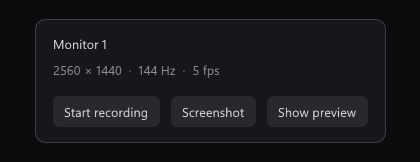
- qBlank: Preview off shows a small panel with resolution, frame rate and recording time, and redraws less often. Hide qBlank from the capture is on by default for the screen. It keeps qBlank out of every screen capture, Remote Play and Remote Desktop included.
HDR
Both take an HDR desktop in HDR. OBS needs Settings → Advanced set to a Rec. 2100 colour space and a 10-bit format; Force SDR on a window source turns it off. qBlank follows the monitor by itself. On an ordinary display the desktop's white stays white and brighter parts clip.
Sound
- OBS: Audio Output Capture for the whole system, and Application Audio Capture (BETA) for a single program.
- qBlank: System sound without qBlank takes everything except qBlank's own playback. A single program cannot be picked.
Recording and replay
Both
- H.264, H.265 and AV1 through NVENC, Quick Sync and AMF; x264 and SVT-AV1 in software.
- 4:4:4, 10-bit and HDR. Lossless with NVENC or UT Video.
- Several NVENC chips on one H.265 or AV1 stream: All encoder chips in qBlank, Split Encode in OBS.
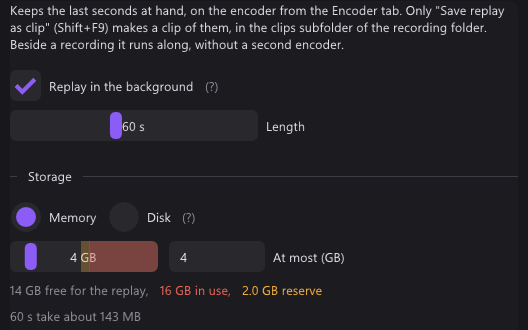
- A replay buffer saved as a clip by a key.
- Pausing a recording.
Where they differ
| qBlank | OBS Studio | |
|---|---|---|
| Containers | MKV, MP4; AVI for lossless | MKV, MP4, MOV, FLV, TS, HLS, hybrid and fragmented MP4 and MOV |
| Default | MKV | Hybrid MP4 |
| Survives a crash | MKV | MKV, hybrid and fragmented MP4 and MOV, TS |
| Other software encoders | x265 | AOM AV1 |
| Frame rate | The source's, or capped, per source | The canvas rate |
| Resolution | The source's, or smaller in steps down to 360p, same shape | Output resolution with a scale filter |
| Replay | Memory or disk, 5 s to 30 min | Memory; 20 s and 512 MB by default |
| Replay during a recording | Saved, also while paused; both share one encoder | Saved; not while the recording is paused |
| Markers | MKV, MP4 and clips | Hybrid MP4 and MOV only |
| Split files | At a set size, seamless | By time, size or by hand |
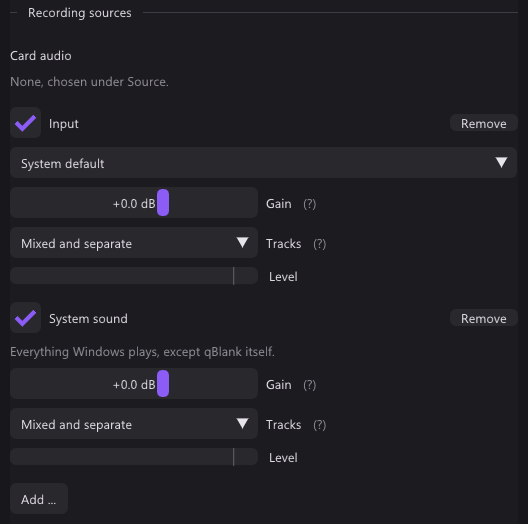
| Sound sources | Card, inputs, outputs, system without qBlank; gain up to +12 dB | Any source, with filters such as noise suppression |
| Tracks | Mixed, separate, or both | Up to six, chosen per source |
| Audio codec | AAC at 96 to 320 kbit/s; PCM in AVI | AAC, Opus and more |
qBlank's markers: Ctrl+Shift+F9 sets one, players show them as chapters.
Screenshots and virtual camera
| qBlank | OBS Studio | |
|---|---|---|
| Screenshot formats | PNG, JPEG, JPEG XR, AVIF | PNG; JPEG XR for HDR |
| Screenshot size | The source's, or the finished window | The canvas, or one source |
| To the clipboard | Ctrl+F10 | – |
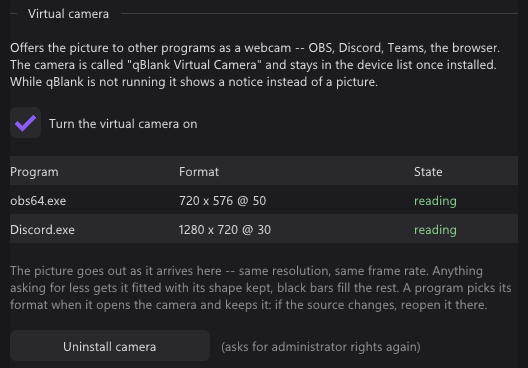
| Camera formats | NV12; P010 with PQ for HDR | NV12, I420, YUY2 |
| Camera picture | qBlank's picture, at the source's rate | Program, preview, a scene or a source, at the canvas rate |
| Programs that see it | 64-bit | 64-bit, 32-bit, ARM64 |
Keys
- OBS: hotkeys work while a game has the keyboard. OBS reads the keys alongside it, so the game sees them too.
- qBlank: every action has a key for the qBlank window and can have a second one under System-wide. While qBlank runs, no other program gets that combination. One already taken shows red.
- Both let you change every key.
Only in OBS
- Scenes, layered sources, overlays, text, transitions, Studio Mode.
- Several sources at once, such as a camera over the game.
- Streaming to Twitch, YouTube and others.
- Game Capture for games in exclusive fullscreen.
- Sound from a single program.
- Audio and video filters per source.
- Splitting by time or by hand, more containers.
- A virtual camera for 32-bit and ARM64 programs.
- Plugins and scripts.
- macOS and Linux.
qBlank will not add scenes, streaming or plugins.
Only in qBlank
- Each frame drawn as it arrives, at the source's own rate. F1 shows qBlank's own time.
- Card sound with its own small buffer, exclusive mode and an A/V offset.
- Video standard, interlacing, field order and colour range measured from the picture.
- Composite filters with a side-by-side compare.
- The console's pixel grid, Sharp Bilinear, scanlines and a CRT mask.
- Replay on disk, up to 30 minutes; clips while a recording is paused.
- Markers in MKV and MP4 and in clips.
- x265. Screenshots as JPEG and AVIF, or to the clipboard.
- An HDR virtual camera.
- System-wide keys that the game does not see.
- One file of about 3 MB.
Using both
A card serves one program at a time. So let qBlank hold it and hand the picture to OBS:
- In qBlank: Recording → Virtual camera → Install camera, then switch the camera on.
- In OBS: add a Video Capture Device and pick qBlank Virtual Camera.
You play on qBlank's latency, and the stream gets qBlank's picture: deinterlaced, standard found, dot crawl removed. For the sound, add the card as an audio source in OBS too, or Audio Output Capture.