In short
Compared with AmaRecTV 4.11 Live and its manual, plus forums and reviews.
| qBlank | AmaRecTV | |
|---|---|---|
| Last version | 2026, still developed | 4.11, October 2017 |
| Source code | Open, GPLv3 | Closed freeware |
| Language | English and German | Japanese; in English only up to 2.31, from 2013 |
| Video codec | Built in through ffmpeg, downloaded on request | Needs AMV4, paid; without a licence it puts a logo in the video |
| Display | Own renderer, Direct3D 11 or Vulkan | Overlay (VMR7) or EVR |
| Card format | Chosen and fitted to the video standard | Picked from a list or typed by hand |
| Card sound | Any format, own buffer from 5 ms | 16-bit stereo, usually 48 kHz, matching the playback device |
| Deinterlacing | In the picture and in the recording | In the preview only |
| Video standard | Found automatically | Set in the card driver's dialog |
| Composite dot crawl | Filters built in | – |
| Screen and window | Monitor or window, any game in a window | Region, window position, or GDI window without DirectX content |
| Recording | MKV, MP4, AVI; H.264, H.265, AV1, lossless | AVI with AMV4 or another VfW codec |
| Replay buffer | Memory or disk, up to 30 minutes | – |
| HDR | Display, recording, screenshots, camera | – |
| Virtual camera | 64-bit, HDR | 32-bit programs only, needs AmaRecTV 3.10 |
| Systems | Windows 10 and 11, 64-bit | Windows 8.1 and 10, 64-bit; Windows 7 untested, with gaps |
The two projects
AmaRecTV
- Made by one Japanese developer. Version 4.01 came out in February 2016, 4.11 in October 2017. Nothing since.
- Freeware, closed source. Version 4 has a language setting, but its manual says only Japanese works so far. The manual is Japanese too.
- The English page is far smaller than the Japanese site, and roughly translated. It offers 2.31 from 2013 in English. Versions 3 and 4 are not on it.
- The manual says there is no user support.
- No installer: unzip and run. The manual warns not to put it under Program Files, or settings are not saved.
- It requires the AMV4 video codec, version 4.10 or later. AMV4 is paid shareware, 2,808 yen. Without a licence it puts a logo into the recording.
- It needs a CPU with SSE4.1. Windows 10 was added in 4.11.
- Many guides and download sites still offer 3.10. By its own readme, it needs AMV4 too.
qBlank
- Open source under GPLv3. Code, issues and releases are on GitHub.
- English and German, with a manual in both.
- One file of about 3 MB, from winget, the website or GitHub.
- Recording needs ffmpeg. qBlank offers to download it, from a fixed source, checked against its hash. No codec to buy, no logo.
- Updates are checked on start, if you want.
Capture card: display
AmaRecTV: overlay or EVR
- AmaRecTV draws through a DirectShow video renderer. The manual recommends overlay (VMR7) for a low delay.
- EVR is the fallback. The manual calls its display delay large and does not recommend it.
- Overlay serves one program at a time. On Windows 7 it only works with Aero turned off.
- Overlay video does not show up in screen captures.
- Under Advanced 2, the preview can be slowed while the mouse is still, to save CPU.
qBlank: its own renderer
- qBlank draws the picture itself, with Direct3D 11 or Vulkan. Display → Graphics API picks one.
- Each frame is drawn when it arrives, at the source's rate. A frame not yet drawn is replaced by the next, never queued behind it.
- One frame of queue in the swap chain, tearing allowed, VSync off by default.
- Nothing depends on overlay support in the driver. Screen captures, Remote Play and OBS see qBlank's window like any other.
F1 shows what qBlank adds itself: Pipeline is the time from a frame's arrival in qBlank until it leaves qBlank. About 1 ms at 1080p60. The card and the monitor add their own on top.
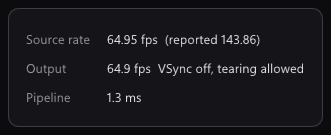
What each shows about the signal
| qBlank (F1) | AmaRecTV (status bar) | |
|---|---|---|
| Frame rates | Source, reported, output | Capture and display |
| Dropped frames | Yes | Yes, plus no frame |
| Format | Size, colour format, standard, fields | Size, FourCC, progressive or interlaced, field order |
| Own time | Pipeline in ms | – |
| While recording | Encoder, buffer, disk | Write speed, buffer fill, CPU, ms per frame |
Capture card: setup
AmaRecTV: by hand
- Size, frame rate, colour format and bit depth are picked from a list or typed into a box.
- The manual gives examples: 720×480 at 29.97 for a GV-USB2, 720×240 at 59.94 for a SNES over RGB.
- 1080i has to be entered as 30 fps. PS2 480i has to be typed in by hand.
- For a Blackmagic Intensity Pro 4K the settings must match the signal exactly. Otherwise there is no picture and no hint where it differs. The manual says this card is for advanced users only.
- A Sknet MonsterX3A can take minutes to start without a signal.
- Colour formats: RGB32, YUY2, UYVY, HDYC. A 10-bit RGB signal is cut to 8-bit.
qBlank: fitted to the signal
- Source lists what the card offers: Colour format, Resolution and Frame rate.
- Match the resolution to the video standard is on by default: if the resolution does not fit, say 720×480 on PAL, qBlank sets the right one itself.
- The signal's rate takes 50 Hz for PAL, 59.94 for NTSC, 60 for PAL 60.
- Enter values manually is there for formats a card does not list.
- NV12 and P010 as well as YUY2, UYVY and RGB. 10-bit stays 10-bit, HDR stays HDR.
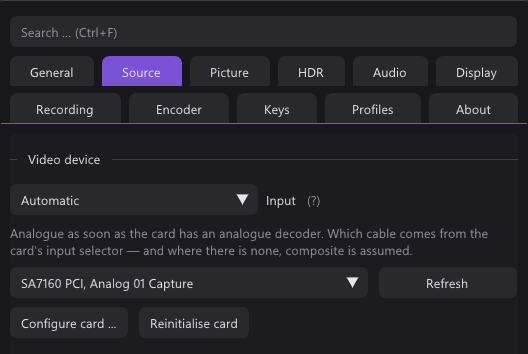
In both, a card serves one program at a time.
Capture card: sound
AmaRecTV
- Sound comes in as 16-bit stereo. The rate is picked, usually 48 kHz.
- The playback device's default format must match. Otherwise AmaRecTV shows a format error.
- The manual's fixes: set the same format in Windows; use exclusive mode, which silences other programs but plays any format; or ignore the error, which silences AmaRecTV's preview while recording still works.
- The audio renderer aims for 40 ms by default. Raising it cuts crackling but adds delay.
- A second playback device can get the sound too, for streaming.
- Mono can be turned into stereo, in the recording too.
- Audio delay shifts the sound in the recorded file by hand. The manual suggests trying ±100 ms, up to about ±500.
- Version 4 has no microphone input; version 3 mixed up to three sources.
qBlank
- Any format the card sends. qBlank converts it to what the device plays.
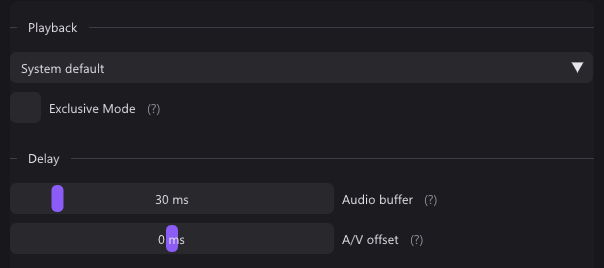
- Audio buffer from 5 to 200 ms, 30 by default.
- Exclusive Mode bypasses the Windows mixer for less delay. As in AmaRecTV, it locks the device against other programs.
- A/V offset moves sound or picture by up to 200 ms during playback, for a TV or headset that adds its own delay. It does not touch the recording.
- M mutes, + and - set the volume. Neither touches the recording.
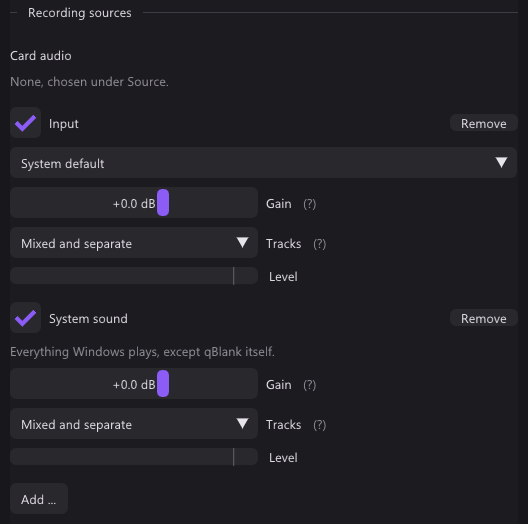
- Microphones and other inputs go into the recording as separate sources. See Recording.
Analogue consoles
| qBlank | AmaRecTV | |
|---|---|---|
| Video standard | PAL, NTSC or SECAM found automatically, follows a switch between 50 and 60 Hz | Set in the driver's dialog |
| When to deinterlace | Measured on each picture | From a table of size and frame rate, or by hand |
| Modes | Off (weave), Bob, Bob (interpolated), Motion adaptive, Edge directed, YADIF | Action, RPG, Retro |
| Field order | Measured, or by hand | From the table, or top or bottom first by hand |
| Applies to the recording | Yes | No, only the crop |
| Aspect ratio in the recording | Square pixels, 720×576 becomes 768×576 | – |
| Composite dot crawl | Five filters, compared side by side | – |
| Crop | By hand or detected, kept per picture size | A crop tool; settings kept in a list to switch between |
| Pixel art | Native pixel grid, Sharp Bilinear, Integer scaling | Retro mode |
| Scanlines, CRT mask | Built in, for the display only | – |
Deinterlacing
AmaRecTV decides from a table: a given size and frame rate counts as interlaced or not. A card often delivers 240p and 480i in the same size and rate, so the table cannot tell them apart. Field order can be set by hand.
Its three modes are named for game genres. The manual describes them:
- Action: for fast games and slow PCs. Good in motion, but still scenes shake up and down and lose detail.
- RPG: quality, for fast PCs. Better in still scenes, some noise in motion. Not for RGB formats.
- Retro: made for Famicom to PS1 signals, the best for old games in load and quality.
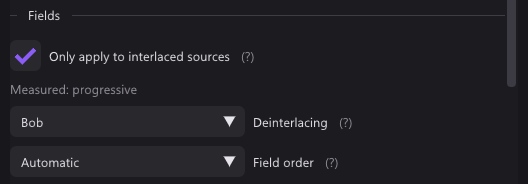
qBlank measures each picture. Only apply to interlaced sources lets the deinterlacer stay on: 240p passes untouched, 480i and 576i are deinterlaced. The field order is measured too.
The recording
In AmaRecTV, aspect ratio and deinterlacing are for the preview only. The recording keeps the card's raw frames, with the crop applied. A 480i recording shows combing and carries no aspect ratio. The FAQ calls this normal: deinterlace and resize in the player or when re-encoding.
qBlank records the picture as you see it: cropped, deinterlaced, with square pixels. The aspect ratio has its own box, Apply to recording, screenshots and camera, on by default. For the card's frames as they arrive, the Encoder tab has Unfiltered, for lossless recordings.
Video standard
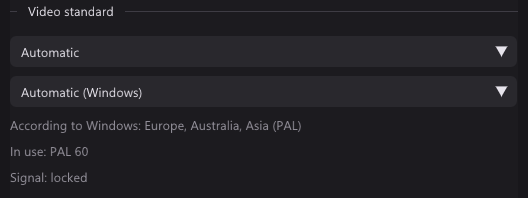
A card set to NTSC shows a PAL console in black and white or with rolling colours. In AmaRecTV you change it in the driver's dialog. qBlank tries the standards itself until the colour locks. F7 checks again on the current picture.
Composite
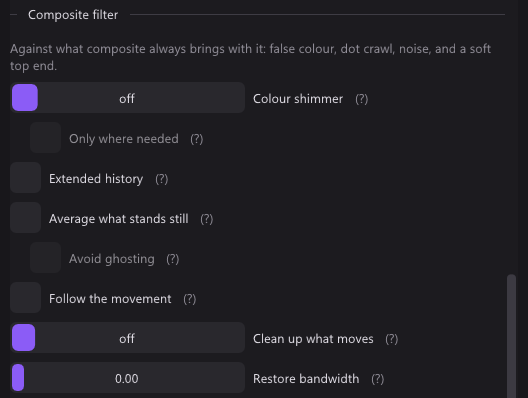
Composite carries colour inside brightness, which leaves moving dots along edges. qBlank has five filters against it; they only appear for a composite input. F12 splits the picture into off and on, F11 holds it still. AmaRecTV has nothing for this.
Pixel art and CRT
- Native pixel grid: pick how many pixels the console draws across, 256 for a SNES. Each console pixel then becomes one sharp block.
- Sharp Bilinear keeps pixels sharp and even at any scale. Integer scaling sits under the aspect ratio.
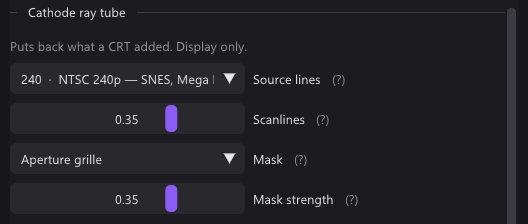
- Scanlines, CRT mask and pixel grid apply to the display only. Recordings, screenshots and the camera get the picture without them.
Screen and window
How each captures
| qBlank | AmaRecTV | |
|---|---|---|
| Whole monitor | Desktop Duplication | Desktop Duplication, as a region |
| Part of the screen | – | A region you draw, or one that follows a window |
| One window | Windows.Graphics.Capture | GDI |
| Games and video in a window | Yes | Not with GDI: DirectX content stays out |
| Covered window | Comes through | Region: what covers it is recorded; GDI: comes through |
| Window moves or resizes | Followed, a new size after a moment | Position followed; a new size only from the next recording |
| Exclusive fullscreen | Not for older games; borderless windowed works | Not possible |
| Frame rate | Every new picture, or capped | From a list, or the monitor's rate |
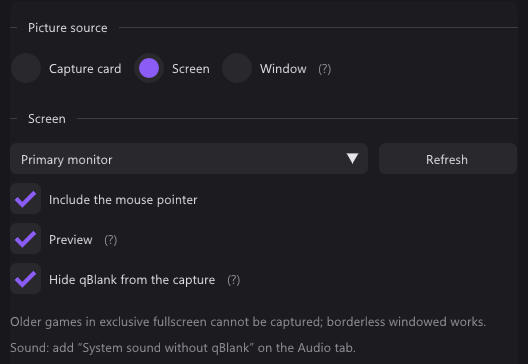
| Mouse pointer | On or off | On or off |
| HDR desktop | In HDR | – |
| Sound | System sound without qBlank | AmaRecTV muted; PC sound only through the AmaSte add-on |
AmaRecTV
- A blue frame marks the region. Arrow keys move it by a pixel, a loupe and snapping help.
- The window-follow mode tracks the window's position. A new window size counts from the next recording.
- The GDI window mode sees through covering windows. But what DirectX draws stays out, such as games and Aero glass, and the manual warns the result may differ from what is on screen.
- Without a dummy pixel, a transparent pixel redrawn at the monitor's rate, motion comes out choppy. The manual has it on for that reason.
- Monitor Rate takes the monitor's rate. 30 fps on a 59.94 Hz monitor becomes 29.97.
- Four presets, A to D, hold different regions.
- AmaRecTV is always muted in desktop mode, against feedback. PC sound needs the AmaSte add-on, 16-bit only, in the device's format.
- Alt+D shows the frame, Shift+S takes a desktop screenshot.
qBlank
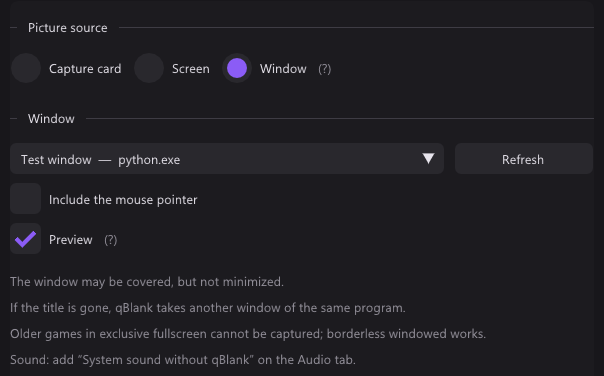
- Screen takes a whole monitor, Window one window, games and video included.
- A covered window comes through. A minimised one does not.
- If the title changes or the window is gone, qBlank takes another window of the same program.
- The border is always cut off.
- Each new picture is drawn at once. Recording → Frame rate on same as source keeps them all, or caps them.
- System sound without qBlank records everything except qBlank's own playback. qBlank stays audible and nothing echoes.
- Hide qBlank from the capture is on by default for the screen. It keeps qBlank out of every screen capture, Remote Play and Remote Desktop included.
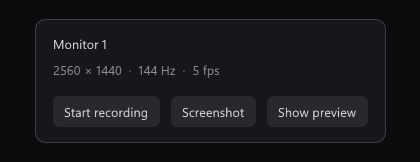
- Preview off shows a small panel with resolution, frame rate and recording time, and redraws less often.
Recording
| qBlank | AmaRecTV | |
|---|---|---|
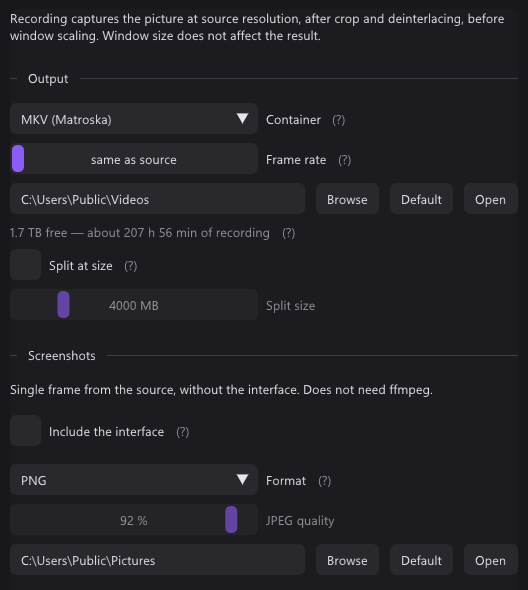
| Containers | MKV, MP4; AVI for lossless | AVI 2.0, on NTFS only |
| Video codecs | H.264 on NVENC, Quick Sync, AMF or x264; H.265 on NVENC, Quick Sync, AMF or x265; AV1 on NVENC, Intel Arc, AMD or SVT-AV1 | AMV4, or any installed 64-bit VfW codec |
| Lossless | H.265 lossless on NVENC, UT Video, uncompressed RGB | AMV4, or a lossless VfW codec |
| Audio codec | AAC at 96 to 320 kbit/s; PCM in AVI | PCM; MP3 needs a 64-bit ACM codec, hard to find |
| What is recorded | The picture as shown; Unfiltered for the card's frames | The card's frames, cropped |
| Resolution | The source's, or a set height from 2160p to 360p | The card's |
| Frame rate | The source's, or capped | The source's, or divided |
| 10-bit, 4:4:4, HDR | Yes | – |
| Sound sources | Card, inputs, outputs, system without qBlank; gain up to +12 dB | The card, with a capture volume |
| Tracks | Mixed, separate, or both | One |
| Audio delay in the file | – | By hand, up to about ±500 ms |
| Splitting | At a set size, seamless | At a set size, 1.5 TB by default |
| Write buffer | 512 MB, or larger in memory | 32 to 4096 MB, 128 by default |
| Disk too slow | Warning at 75 %; full stops the recording, the rest is still written | Over 50 % means too slow; full can stop the recording |
| Free space | Shown as recording time left | Shown while recording; checked at the start |
| After a crash | MKV stays playable | Repair tool for the AVI |
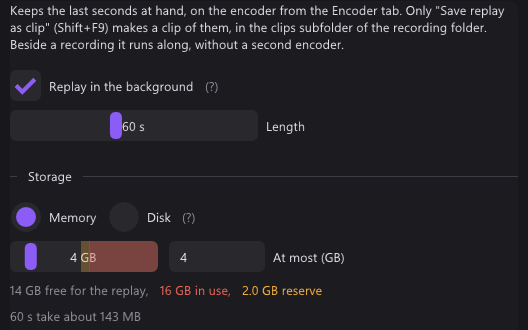
| Replay buffer | Memory or disk, 5 s to 30 min | – |
| Markers | MKV, MP4 and clips | – |
| Timer | – | Stop after a time; scheduled start through a separate scheduler |
| Second folder | – | Used when the first fails |
AmaRecTV
- The status bar counts frames AmaRecTV adds or drops to keep sound in sync. The manual says this almost always happens and is not a fault.
- A D there means the ring buffer overflowed and frames were lost.
- Starting a recording can take about 10 s while a hard disk spins up.
- Short recordings can be moved to a temp folder. A report file logs each recording.
- 4.11 rebuilt the recording engine: it now runs by time instead of by frames.
qBlank
- The encoder runs inside qBlank, through ffmpeg's libraries. With NVENC and AMF the frame goes from the GPU to the encoder without a copy.
- A change of size or video standard during a recording starts a new file, seamlessly.
- The replay buffer and the recording share one encoder. Shift+F9 saves the last minutes as a clip.
- Markers: Ctrl+Shift+F9 sets one, players show them as chapters.
Screenshots and virtual camera
| qBlank | AmaRecTV | |
|---|---|---|
| Screenshot formats | PNG, JPEG, JPEG XR, AVIF | BMP, PNG, JPEG |
| HDR screenshots | JPEG XR or AVIF | – |
| With the interface | Include the interface | – |
| To the clipboard | Ctrl+F10 | A setting |
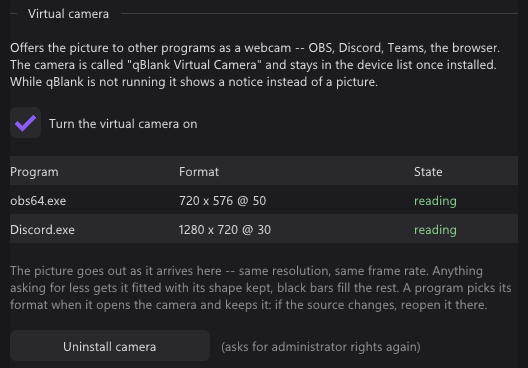
| Virtual camera | Built in, a DirectShow source | AmaRec Live, installed from version 3.10 |
| Programs that see it | 64-bit | 32-bit |
| Camera picture | qBlank's picture, at the source's rate | No resizing |
| Camera formats | NV12; P010 with PQ for HDR | – |
AmaRec Live came with 3.10, and 4.x still uses it. Its status shows Rdy, Run or Disable. OBS users report needing the 32-bit OBS for it.
Keys and presets
| qBlank | AmaRecTV | |
|---|---|---|
| Change every key | Yes | Yes |
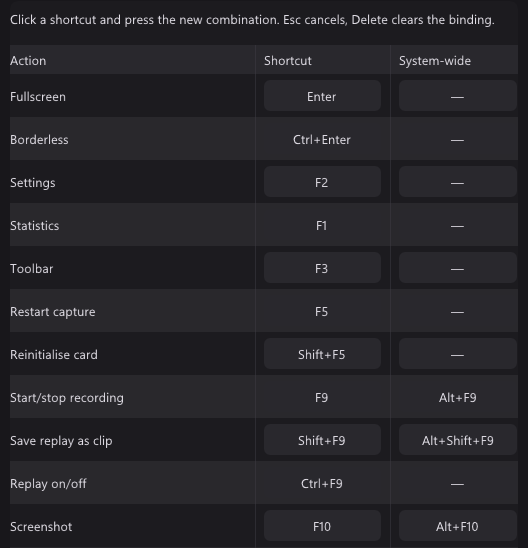
| Keys in other programs | A second key under System-wide; no other program gets it | Global hook, for all keys |
| Mouse | Double-click for fullscreen | Double-click, wheel, and both with the right button, all assignable |
| Record | F9 | Alt+Z, stop Alt+X |
| Screenshot | F10 | Alt+S |
| Fullscreen | Enter | Alt+Enter |
| Borderless | Ctrl+Enter | Ctrl+Enter |
| Mute | M | M |
| Settings | F2 | C |
| Presets | Profiles with names, chosen by hand or by the detected video standard | Twelve, on F1 to F12 |
- AmaRecTV's global hook lets its keys work while another program has focus.
- qBlank's system-wide keys belong to qBlank while it runs: no other program gets that combination. One already taken shows red.
What users report about AmaRecTV
From forums and reviews. Most are several years old, and many are about 3.x.
- Overlay gave a black picture on some Windows 10 systems with Nvidia cards.
- One user of an SC-512N1 card found the delay slightly lower than in OBS's preview.
- Speedrunners took the sound from AmaRecTV because OBS's monitoring lagged about a tenth of a second.
- With a GV-USB2 one user lost 30 frames in 35 s, where VirtualDub lost none. Other reviews found no drops and the sound in sync.
- On 2.31 the preview sound sometimes ran fast.
- Wishes: a level meter, and documentation in English.
- A capture forum advises against it: buggy, and working with few cards.
Only in AmaRecTV
- A region of the desktop, drawn by hand or following a window.
- A timer, and scheduled recording through a separate scheduler.
- A second save folder for when the first fails.
- A repair tool for AVIs broken by a crash.
- Mouse wheel and double-click actions, assignable.
- Window size by key: 50, 100 and 200 %.
- Process priority, and a slower preview while the mouse is still.
- An audio delay for the recorded file.
- Mono to stereo, and a second sound output.
- A virtual camera for 32-bit programs.
- Windows 8.1.
Only in qBlank
- Open source, in English and German, still developed.
- No codec to buy, no logo. Hardware encoders from NVIDIA, Intel and AMD, AV1 included.
- Video standard, interlacing, field order and colour range measured from the picture.
- Deinterlacing and aspect ratio in the recording, not just the preview.
- Composite filters with a side-by-side compare.
- The console's pixel grid, Sharp Bilinear, scanlines and a CRT mask.
- Card sound in any format, with an A/V offset for playback.
- Microphones and system sound in the recording, on their own tracks.
- Window capture that includes games and video.
- Replay buffer in memory or on disk, up to 30 minutes, and markers.
- HDR from the card or the desktop, through display, recording, screenshots and camera.
- A 64-bit virtual camera with qBlank's full picture.
- F1 shows qBlank's own time per frame.